



3
Free
Mouse Settings Changer
Tweak your mouse settings efficiently
 MemorialApps
Safe & trusted downloads
The best software, verified by experts
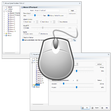
Quickly switch pointer behavior between touchpad and mouse
Mouse Speed Switcher applies device-specific pointer and wheel settings on demand, letting you save and activate distinct configurations. Developed by gPhotoShow.com for Windows, the app exposes up to ten configurable profiles and supports automatic device detection plus global hotkeys. It offers a virtual DPI multiplier, per-profile acceleration and button swaps, and a system tray control. Laptop users who alternate between built-in touchpads and external mice, and those needing different precision levels for tasks, get the most benefit.
Mouse Speed Switcher stores up to ten independent mouse profiles that contain pointer speed, acceleration (Enhance Pointer Precision), scroll behavior, and left/right button swaps. You assign settings to each profile, then invoke them manually with global hotkeys or let the app detect which pointing device is active and apply the matching profile automatically. The settings apply at the OS level so the cursor behavior changes without opening system control panels.
The developer reports a lightweight footprint, and the app runs from the system tray with minimal background presence. That means CPU and RAM consumption stays low during normal use, which is consistent with tools that manage input rather than heavy processing. Because the app writes pointer and wheel parameters at runtime, you should notice immediate cursor response when switching profiles, without a desktop restart.
The app operates by changing pointer and scroll settings and does not replace system drivers; changes are profile-bound and reversible. It requires standard user privileges for pointer adjustments and does not modify firmware. For safety, the app keeps profile definitions separate from system files, so rolling back to a previous profile is a matter of reselecting it from the tray or hotkey, rather than restoring registry snapshots.
The interface exposes hotkeys, profile selection, and a tray icon for visual identification, which makes basic operation accessible to non-technical users who can click a tray menu or press a keyboard shortcut. Advanced options such as the virtual DPI multiplier and configurable inertia give more control to designers and gamers; those features require some experimentation to match device sensitivity to personal preference.
The app suits laptop owners and professionals who need distinct pointer behavior per device and want low-impact background operation. Expect a short setup phase to tune sensitivity and inertia for each device; once configured, the tool maintains those settings without further intervention. Recommended.
Mouse Speed Switcher for Windows
Free
Tweak your mouse settings efficiently
Free
Customize your mouse efficiently
Free
Mouse control software for PC

Free
Install the latest driver for steelseries rival software
Free
A handy tool to keep your PC awake

Free
X-Mouse Button Control supercharges your mouse
Customize your mouse efficiently
X-Mouse Button Control supercharges your mouse

Utility for hiding mouse cursors on PC

Revolutionizing project planning with intelligent cloud automation

Locks touchpad when you are typing text

NumLocker: Essential Tool for Keyboard Management

Urdu IME is an advance input method editor for Urdu language

Add sounds to your mouse movement
Control the distance of your mouse moves

Use your keyboard to type in Arabic
Display two full screen lines intersecting your mouse pointer